MOVING TIPS & ADVICE
Shock-Resistant Moving for Gaming PCs and Multi-Monitor Setups
Key answers
When moving a gaming PC and multiple monitors, secure the internal parts first, pack each screen separately, label all cables, and keep the load stable in the truck. After arrival, check for damage before reconnecting anything.
Decide what should be removed and what can stay in the case
The biggest risk to a gaming PC is not the distance, but the way its parts shift during transit. Before moving, check the graphics card, tower cooler, drive mounts and tempered-glass side panel. Heavy or protruding parts may need to be removed and packed separately; if you are not confident with disassembly, do not force it yourself and ask the original vendor or a qualified technician for help.
When removing parts, keep screws, brackets, covers and adapters in separate bags and label each one clearly. Any parts left inside the case should only be handled after the PC is powered off, unplugged and discharged. If the system has custom water cooling, unusual modifications or unfamiliar components, confirm the removal risks and warranty requirements first.
Internal cushioning matters more than the outer box alone
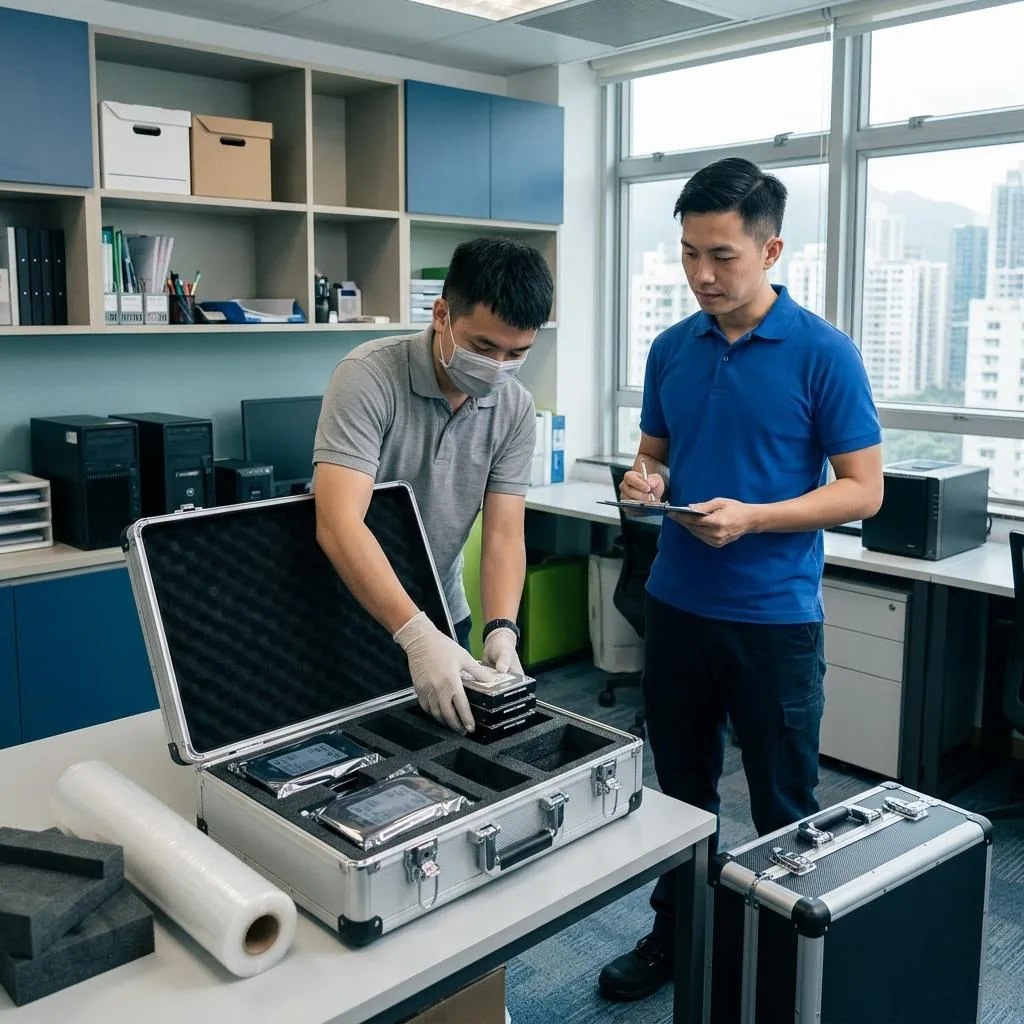
If there is empty space inside the case, vibration can make the components move around. The most common problems are the graphics card, cooler and cables knocking against each other, or the slot taking repeated stress. Use anti-static packaging, original foam, or suitable fillers to keep the internal space stable, but do not pack it so tightly that fans or cables are crushed.
If the original packaging is gone, use a strong carton with enough cushioning on every side. Before moving, gently shake the outer box; if you hear a clear knocking sound, more stabilising material is needed. After arrival, check whether the graphics card, memory, fans and power cables have loosened before you connect power again.
Pack each monitor separately and never stack screen-to-screen
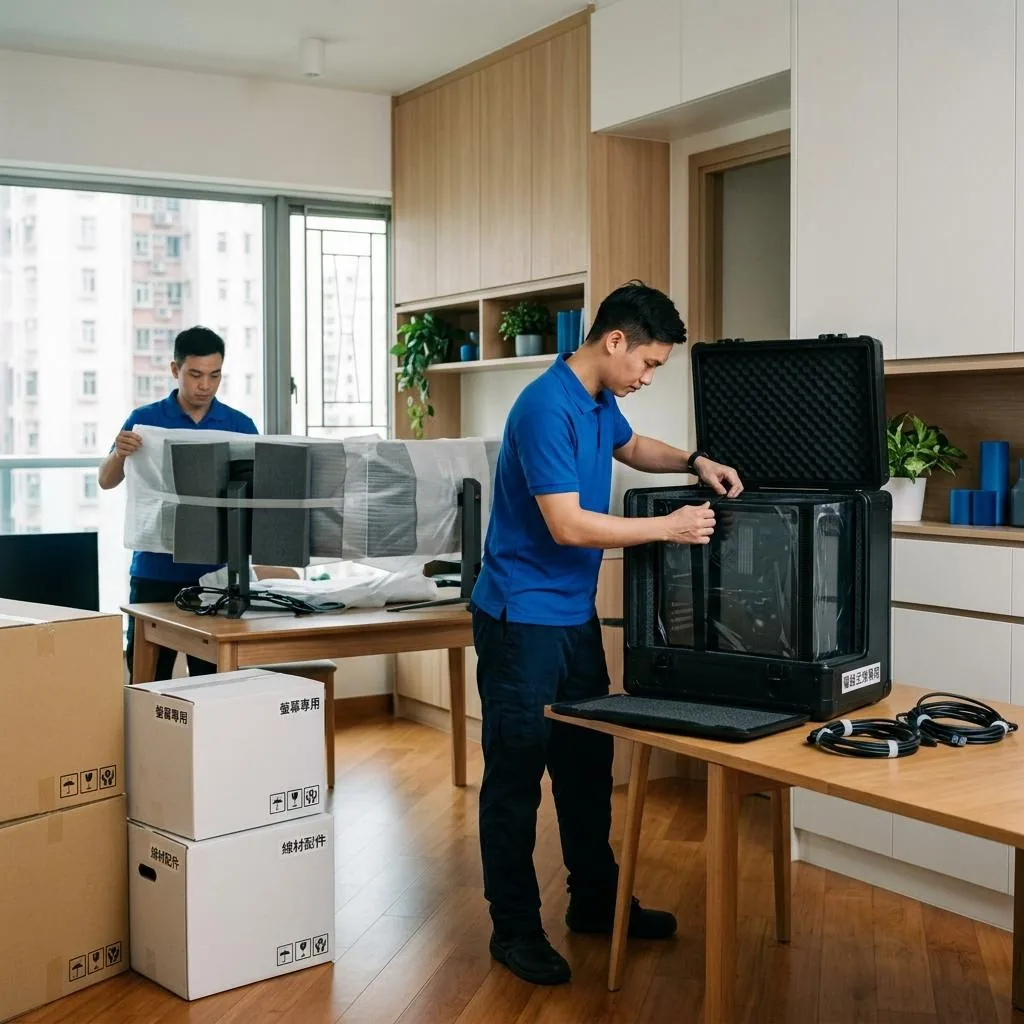
The main risks for multiple monitors are screen pressure and corner damage. Each display should be cleaned first, then wrapped in a soft protective layer with scratch protection on the front and extra reinforcement at the corners. Place hard cardboard or foam between screens and never stack them directly face to face, or they may crack when the vehicle brakes or turns.
Keep the monitors upright in the box instead of laying them flat under pressure, and mark the box as this side up and fragile. Curved panels, ultra-thin bezels and large high-resolution screens are especially sensitive at the edges, so they are best packed separately. Stand bases, wall-mount brackets and adapters should also be bagged separately to avoid scratching or impact inside the carton.
Label cables and accessories so they can be restored easily
Gaming setups often include multiple signal cables, power cords, USB hubs, speakers, cameras or controller docks. If everything is mixed together, it becomes difficult to rebuild the setup in the new home. Before unplugging anything, take photos so you can see where each cable was connected, then coil each line separately and label it, such as main monitor 1, secondary monitor 2, or PC power.
Keep accessories in a separate box rather than putting them inside the PC or monitor cartons. Screws, VESA brackets, extension leads, mouse pads and other small items should be sorted into compartments so they do not rub against each other. For external drives or other storage devices, back up the data first and keep them safe. Anything involving data transfer, system settings, network setup or electrical reconnection should be handled by the relevant qualified professional, not rushed on moving day.
How to place, secure and check the load after arrival
Once loaded, the PC and monitors should be placed in a stable area away from doors, tailgates or items that may press against them. The boxes should sit snugly without being forced together, and soft padding, fabric or other non-crushing items can be used to reduce side-to-side movement during turns. If the carton says this side up, keep the orientation consistent and avoid placing heavy items on top.
After arrival, do not plug anything in immediately. First check whether the cartons are dented, torn, wet or dropped, then look for cracks on the panel, deformation of the case and missing screws, stands, cables or accessories. If you notice unusual noise, looseness, a burning smell or failure to start, stop using the device and have a qualified technician inspect it first.
What to ask a mover before booking
Moving a gaming PC and multi-monitor setup is about clear planning, not slogans. Before booking, ask whether the mover can advise on suitable packing, whether they will separate and label items according to a checklist, whether they can place everything at the requested spot after delivery, and how they handle glass panels, oversized monitors or special accessories. For disassembly, power, networking or technical connection tasks, ask for written confirmation of who is responsible.
It also helps to prepare your own moving list, including the PC model, number of monitors, accessories, whether the original boxes are still available, and which parts have already been removed. If your home has narrow corridors, many stair turns or building time restrictions, tell the mover early to reduce the risk of damage during handling. For general workflow, quotes or terms, refer to the relevant pages on the website.
Frequently Asked Questions
Do I have to remove the graphics card before moving a gaming PC?
Not always, but if the card is heavy, the move is long, or the route is likely to be bumpy, removing and packing it separately is usually safer. If you are not familiar with the process, ask the original vendor or a qualified technician to do it.
Can several monitors be put in the same box?
Yes, but only with proper separation between each screen. They should not touch face to face, and they should stay upright with enough cushioning. Large, curved, or ultra-thin-bezel monitors are often better packed separately.
Should I unplug every cable before moving?
Yes. Power off first, unplug the system, and then remove the cables one by one while taking photos of where they were connected. Never pull cables while the system is still powered.
Can I test the PC immediately after arriving at the new place?
It is better to check the exterior, screws, cables and accessories first, and only connect power after confirming there is no moisture, impact damage or looseness. If you smell something unusual, see deformation or hear abnormal noise, stop using it and get a qualified technician to inspect it.
What should I ask a mover before booking this kind of job?
Ask about packing, disassembly, labelling, placement at destination and how they handle special items. Also request written confirmation for any work involving disassembly, power, networking or other technical tasks. Prices, scope and terms should be checked on the relevant website pages.